Content workflow
AI character replacement for trending clips
Upload a short clip and pick a creator or a photo. AutoReel swaps the person in the clip for your character, keeping the same motion and camera, or makes your photo move the way the clip does, then exports the result.
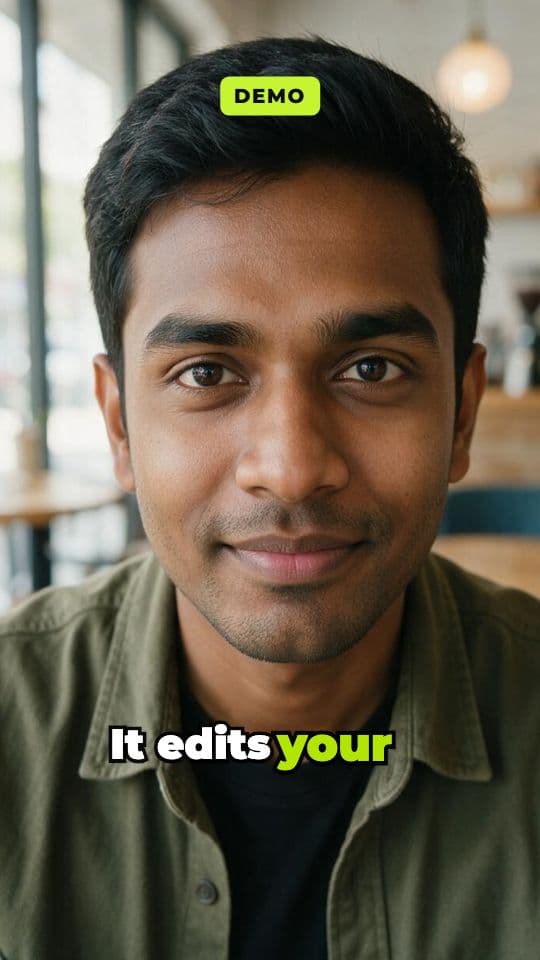
what it does
The motion of a trend, with your character in it
Trends on TikTok and Reels are often a movement: a dance, a transition, a reaction, a walk to camera. Joining one usually means filming yourself doing it. Recast lets your AI creator perform the motion instead.
There are two modes. Swap the person replaces whoever is in the clip with your character, keeping their movement, the camera and the background. Move my photo goes the other way: your photo keeps its own setting and comes to life with the clip's motion. Both use a motion-transfer video model that follows the clip frame by frame.
Because it involves likeness, every run asks you to confirm that you have the rights to the clip and that the person in your photo agreed to appear in it. The stock creators in your library are AI-generated people, which makes them the simplest choice.
Recast is the right tool when the movement is the content. When you want someone to talk to camera, use the AI UGC video workflow; when you want a single photo to move with a camera effect, use photo effects.
how it works
How it works
One input, then AI runs every step below. Review the plan first, or let it go straight to a finished MP4.
Step 1: Upload the clip
A clip of up to 30 seconds with the motion you want, filmed by you or one you have the rights to use.
Step 2: Pick who stars
Choose a creator from your library or upload a photo, then pick swap the person or move my photo. Add a line of guidance if you like.
Step 3: Confirm the rights
Tick the box to confirm you have the rights to the clip and the permission of the person in your photo. Recast won't run without it.
Step 4: Motion transfer and export
A motion-transfer model renders the clip with your character, following its timing, and the MP4 exports by itself.
what you get
What you get
A recast clip
The same length and motion as your clip, up to 30 seconds, with your character in it, at 9:16, 1:1 or 16:9.
Two ways to recast
Swap the person keeps the clip's scene and camera; move my photo keeps your photo's scene.
Standard or best quality
Standard renders at 480p for quick tests; best renders at 720p for the version you post.
A reel you can finish
Add a caption, text or music in the editor before you post.
who it's for
Who uses it, and for what
AI influencer accounts
Join trends with your virtual creator, without anyone filming.
Brands with a signature creator
Put the face of your brand into formats your audience already knows.
Creators
Reuse your own best-performing movement with a different character or look.
Dance and fitness accounts
Show routines performed by one consistent character, post after post, without filming each one.
tips
Tips for better results
Start from a clean clip
One person, the whole body in frame, a steady camera and good light make the motion easiest to follow.
Use a clear photo of your character
A sharp, well-lit photo that shows as much of the body as the clip does gives the model the most to work with.
Build your creator first
Use the creator + carousel workflow to set up a consistent creator in your library, then recast it into trends.
Mind the rights
Use clips and sounds you own or are licensed to use. Trending audio is often licensed only inside the app it came from.
Match the framing
For a full-body dance, use a full-body photo; for a close-up reaction, a head-and-shoulders photo is enough.
related
Keep exploring
Workflows that pair well with this one, the models behind it, and the features that go deeper.
Related workflows
- Creator + carouselKeep one AI creator consistent and make a photo-dump carousel of them.
- Photo effectsTurn one photo into a viral clip: zooms, transformations, camera moves.
- AI UGC videoAn AI creator talks about your product, perfectly lip-synced.
Models
Go deeper
faq
Recast a clip: questions
What is AI character replacement?
Replacing the person in a video with another character while keeping the original motion, timing and camera. Recast does it with a motion-transfer video model: you give it a clip and a photo of who should star.
What's the difference between the two modes?
Swap the person keeps the clip's background and camera and puts your character in place of the person. Move my photo keeps your photo's own scene and animates it with the clip's motion.
Is this a face swap?
Not quite. A face swap replaces only a face; Recast renders your whole character performing the clip's movement: its look comes from your photo, its motion from the clip.
Whose likeness can I use?
Creators from your library, yourself, or people who have agreed to it. Every run asks you to confirm that, and using someone's likeness without permission breaks AutoReel's acceptable use policy.
How long can the clip be?
Up to 30 seconds. Shorter clips with one clear movement give the best results and cost less, so trim the clip to the moment that matters before you upload it.
What resolution is the result?
480p at standard quality, for quick tests, and 720p at best quality.
What does the optional guidance do?
It's passed to the motion model as a short prompt for details like clothing, lighting or mood. Keep it brief: the clip and the photo do most of the work.
Can I edit the result?
Yes. It opens in the editor like any reel, where you can trim it, add a caption, on-screen text or music, and export again.
Your next reel is one prompt away.
Start with 100 free credits. No card needed.